Microsoft Azure Intune Always On Split VPN Custom XML Profile
I. Warum sollte ich mein Azure Intune Always On VPN nicht einfach per GUI konfigurieren?
Die Antwort ist einfach: Per GUI gibt es leider so einige Einschränkungen. Folgende (sicher gibt es noch viele viele mehr) Settings kann ich nur per XML Config einstellen bzw. ausrollen. Per GUI gibt es leider keine Möglichkeit.
- Disable class-based default route
- Exclusion routes
- Lock Down Mode
- IPv6 routing (broken in Intune)
In unserem Fall wollten wir bestimmte Routen über die VPN-Verbindung ins Unternehmen laufen lassen. Wiederum andere Verbindungen sollten direkt daran vorbei ins Internet gehen. Bei Diensten oder Anwendungen, die besonders viel Traffic erzeugen, wie zum Beispiel Microsoft Teams oder aber auch Netflix, macht es nicht viel Sinn diese über das VPN ins Unternehmen zu routen und von dort dann ins Internet. Dies würde nicht nur die VPN Verbindung „belasten“ sondern bei hunderten von Users auch die Firewall umso mehr beanspruchen.
Also haben wir die Config so angepasst, dass IP’s, die wir intern auflösen wollen, zum Beispiel interne Server oder Dienste, direkt durch das VPN gehen, Microsoft Dienste wie MS Teams, Onedrive, Shareppint oder aber auch Streaming Dienste wie Netflix, Amazon Prime oder Spotify, werden am VPN vorbei direkt ins Internet geroutet. Das so genannte Split Tunneling in Verbindung mit den „Exclusion Routes“ die also am VPN vorbei gehen sollen, hätten wir ohne die VPN XML Config nicht umsetzen können.
Anbei eine Anleitung wie man in Intune ein Custom Intune Profile erstellt und anschließend nicht per GUi, sondern per XML Datei konfiguriert und ausrollt!
Under: Intune -> Devices -> Configuration Profiles, we can Create User or Device profiles. In This case we created a User Always On VPN Tunnel, that is rolled out via Intune and the Settings are stored in an XML configuration file.
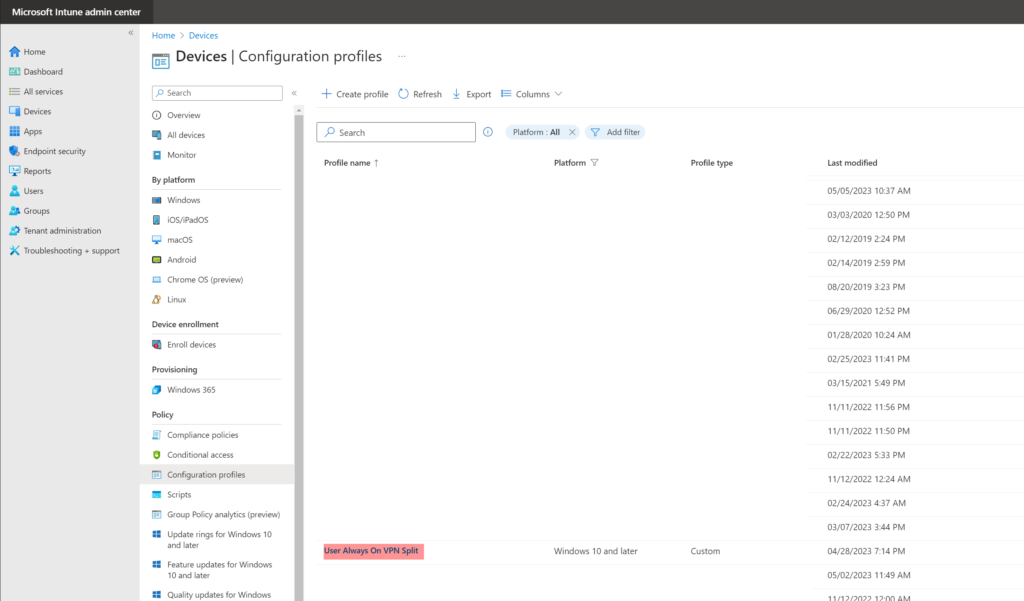

- Via „Create Profile“ we can create a new Intune Profile, in our case, we want to roll out a specialized custom Intune profile where we can configure the settings via a special xml file
- As „Platform“ we use Windows 10 and later
- „Profile Type“ we use Templates
- For „Template“ we use Custom
- Now we can can start creating our profile, so CLICK „Create“
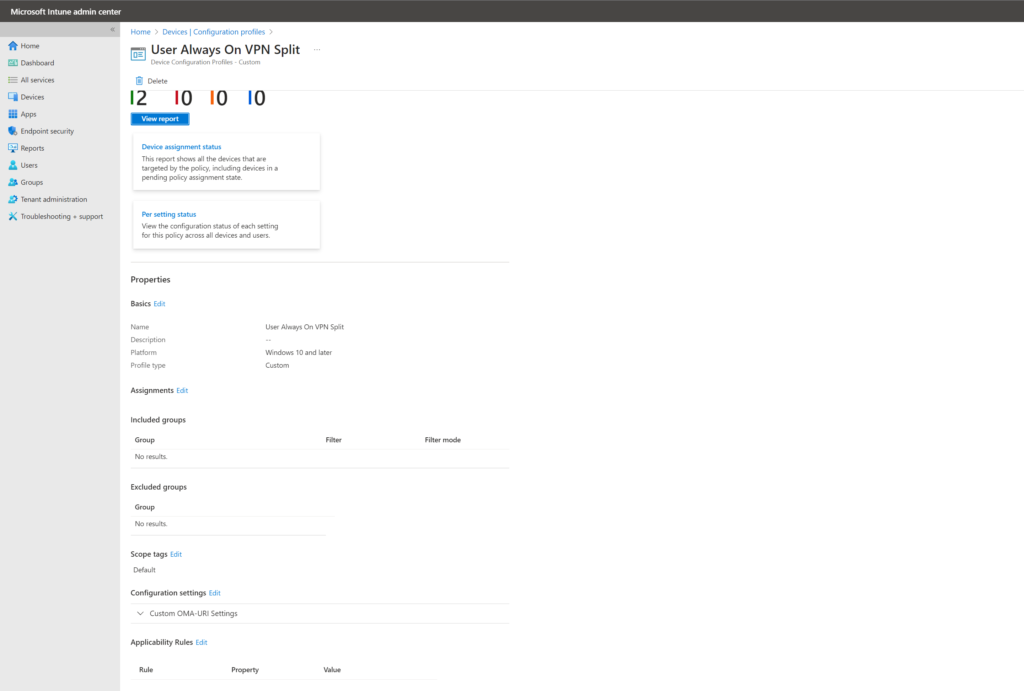
- Here we see an overview of the profile
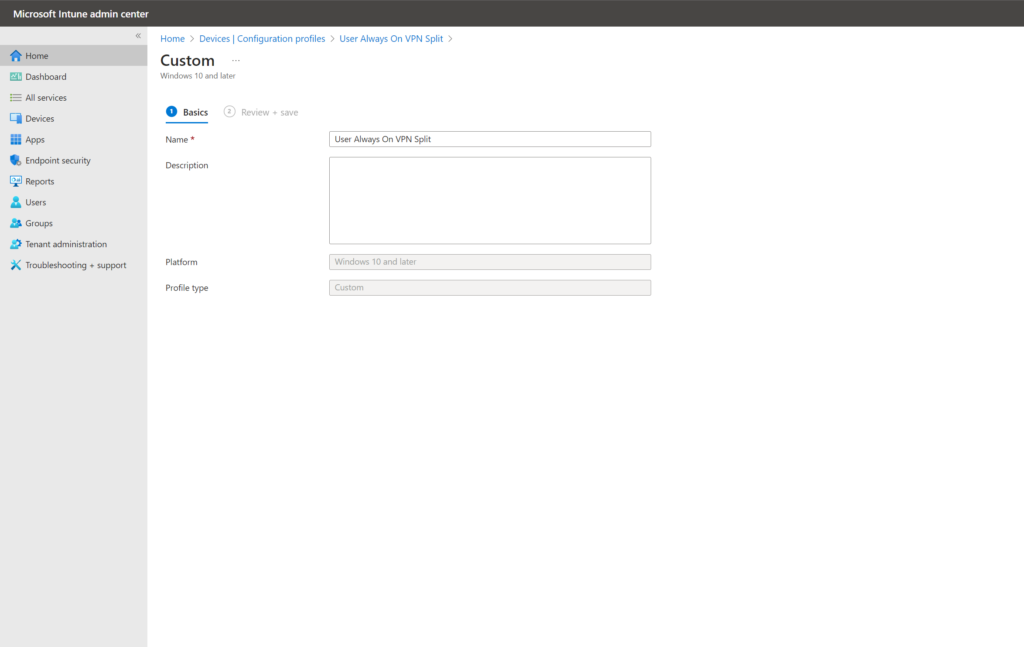
- First the basics are entered, Name, Description, Platform and Profile Type
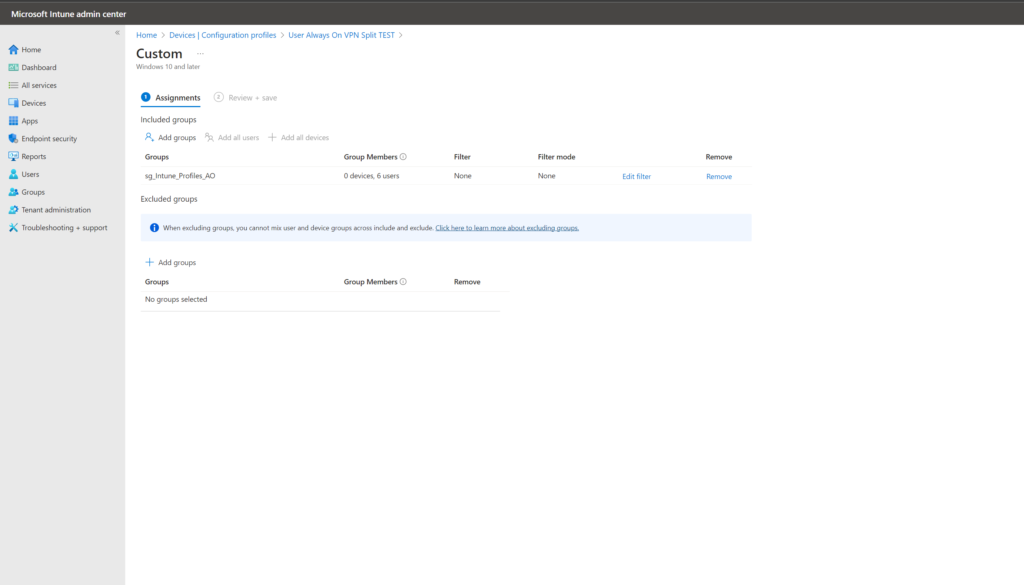
- Then we come to the „Custom – Assignments“ column
- Here we can setup Groups, to assign the policy, i. e. in our case „sg_Intune_Profiles_AO„
- It’s also possible to exclude Groups or User, then the policy isnt assigned

- It the „Custom – Scope tags“ column, we can set certain conditions that will be queried so that the policy will only be applied if the conditions apply
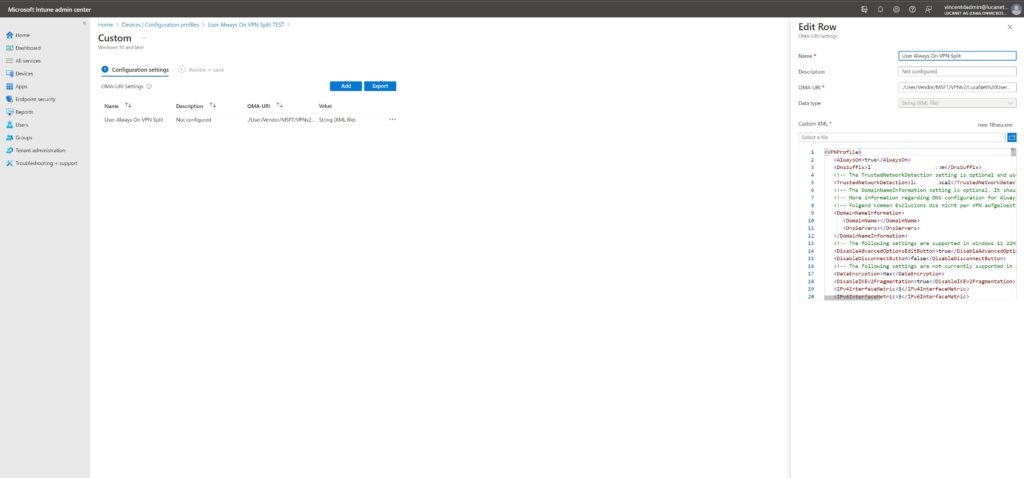
- the heart of this profile is the configuration settings column
- Here we can define what kind of profile we are dealing with, i. e. in our case a user profile that establishes a VPN tunnel (Always On). What is special here is that the settings are configured via an XML and are not setup via the GUI.
Name: User Always On VPN Split
Description: NOT Configured
OMA-Uri: ./User/Vendor/MSFT/VPNv2/Beispiel AG%20User%20TeamIT%20Split%20AO/ProfileXML
Data-Type: STRING (XML File)
Custom-XML:
<VPNProfile>
   <AlwaysOn>true</AlwaysOn>
   <DnsSuffix>testcompany.local,testcompany.com</DnsSuffix>
   <!-- The TrustedNetworkDetection setting is optional and used to prevent the VPN connection from being established when the device is on the internal network. -->
   <TrustedNetworkDetection>testcompany.local</TrustedNetworkDetection>
   <!-- The DomainNameInformation setting is optional. It should only be used when the DNS servers configured on the VPN server's network interface cannot resolve internal Active Directory hostnames. -->
   <!-- More information regarding DNS configuration for Always On VPN can be found here: https://rmhci.co/2F7iQxP. -->
   <!-- Folgend kommen Exclusions die nicht per VPN aufgeloest werden sollen -->
   <DomainNameInformation>
      <DomainName></DomainName>
      <DnsServers></DnsServers>
   </DomainNameInformation>
   <!-- The following settings are supported in Windows 11 22H2 and later. -->
   <DisableAdvancedOptionsEditButton>true</DisableAdvancedOptionsEditButton>
   <DisableDisconnectButton>false</DisableDisconnectButton>
   <!-- The following settings are not currently supported in a public release of Windows. However, they are available in current Windows 11 Insider development channel builds. -->
   <DataEncryption>Max</DataEncryption>
   <DisableIKEv2Fragmentation>true</DisableIKEv2Fragmentation>
   <IPv4InterfaceMetric>3</IPv4InterfaceMetric>
   <IPv6InterfaceMetric>3</IPv6InterfaceMetric>
   <NetworkOutageTime>0</NetworkOutageTime>
   <UseRasCredentials>true</UseRasCredentials>
   <!-- End settings -->
   <NativeProfile>
      <Servers>ao09.testcompany.com</Servers>
      <!-- If NativeProtocolType is set to Automatic, SSTP will be used first. Details here: https://rmhci.co/2M8EaIk. -->
      <NativeProtocolType>Automatic</NativeProtocolType>
      <Authentication>
         <UserMethod>Eap</UserMethod>
         <Eap>
            <Configuration>
			<EapHostConfig xmlns="http://www.microsoft.com/provisioning/EapHostConfig"><EapMethod><Type xmlns="http://www.microsoft.com/provisioning/EapCommon">25</Type><VendorId xmlns="http://www.microsoft.com/provisioning/EapCommon">0</VendorId><VendorType xmlns="http://www.microsoft.com/provisioning/EapCommon">0</VendorType><AuthorId xmlns="http://www.microsoft.com/provisioning/EapCommon">0</AuthorId></EapMethod><Config xmlns="http://www.microsoft.com/provisioning/EapHostConfig"><Eap xmlns="http://www.microsoft.com/provisioning/BaseEapConnectionPropertiesV1"><Type>25</Type><EapType xmlns="http://www.microsoft.com/provisioning/MsPeapConnectionPropertiesV1"><ServerValidation><DisableUserPromptForServerValidation>false</DisableUserPromptForServerValidation><ServerNames>testcompany.local</ServerNames><TrustedRootCA></TrustedRootCA></ServerValidation><FastReconnect>true</FastReconnect>

SECURITY SETTINGS, Cant Publish this

</FilteringInfo></TLSExtensions></EapType></Eap><EnableQuarantineChecks>false</EnableQuarantineChecks><RequireCryptoBinding>false</RequireCryptoBinding><PeapExtensions><PerformServerValidation xmlns="http://www.microsoft.com/provisioning/MsPeapConnectionPropertiesV2">true</PerformServerValidation><AcceptServerName xmlns="http://www.microsoft.com/provisioning/MsPeapConnectionPropertiesV2">true</AcceptServerName></PeapExtensions></EapType></Eap></Config></EapHostConfig>
			<!-- Use Get-EapConfiguration.ps1 (https://rmhci.co/2UqQ3jz) to extract EAP configuration from existing connection and paste file contents here! --></Configuration>
         </Eap>
      </Authentication>
      <!-- The recommended routing policy type is SplitTunnel. However, ForceTunnel can be enabled if required. Details here: https://rmhci.co/2VrLDay. -->
      <!-- If ForceTunnel is enabled, DisableClassBasedDefaultRoute must be set to 'false' or removed the element completely. Also, all Route entries must be removed. -->
      <RoutingPolicyType>SplitTunnel</RoutingPolicyType>
      <!-- The DisableClassBasedDefaultRoute setting is optional but recommended. -->
      <DisableClassBasedDefaultRoute>true</DisableClassBasedDefaultRoute>
      <!-- The CryptographySuite setting is optional but recommended when using IKEv2. The default security settings for IKEv2 are extremely weak.
      <!-- Enabling this setting requires the VPN server to use matching settings. -->
      <!-- The cryptography settings defined below are recommended minimum security baselines. They can be changed to meet higher level security requirements as required. -->
	  <CryptographySuite>
         <AuthenticationTransformConstants>GCMAES128</AuthenticationTransformConstants>
         <CipherTransformConstants>GCMAES128</CipherTransformConstants>
         <EncryptionMethod>AES_GCM_128</EncryptionMethod>
         <IntegrityCheckMethod>SHA256</IntegrityCheckMethod>
         <DHGroup>Group14</DHGroup>
         <PfsGroup>ECP256</PfsGroup>
      </CryptographySuite>
   </NativeProfile>
   <!-- The Route setting is required when DisableClassBasedDefaultRoute is set to "true". -->
   <!-- The Route setting 0.0.0.0/0 ensures that all traffic that is not excluded goes through our VPN -->
      <Route>
      <Address>0.0.0.0</Address>
      <PrefixSize>0</PrefixSize>
                 <Metric>1</Metric>
   </Route>
   <!-- Route  - Our Internal Routes that should be routed via our Always On VPN -->
	<Route>
      <Address>10.0.0.0</Address>
      <PrefixSize>8</PrefixSize>
		<Metric>1</Metric>
   </Route>
   <Route>
      <Address>10.0.0.0<</Address>
      <PrefixSize>24</PrefixSize>
		<Metric>1</Metric>
   </Route>
   <Route>
      <Address>10.0.0.0<</Address>
      <PrefixSize>24</PrefixSize>
	  	  <Metric>1</Metric>
   </Route>
   <Route>
      <Address>10.0.0.0<</Address>
      <PrefixSize>24</PrefixSize>
	  	  <Metric>1</Metric>
   </Route>
   <Route>
      <Address>10.0.0.0<</Address>
      <PrefixSize>24</PrefixSize>
	  	  <Metric>1</Metric>
   </Route>
   <Route>
      <Address>10.0.0.0<</Address>
      <PrefixSize>24</PrefixSize>
	  	  <Metric>1</Metric>
   </Route>
   <Route>
      <Address>10.0.0.0<</Address>
      <PrefixSize>24</PrefixSize>
	  	  <Metric>1</Metric>
   </Route>
   <Route>
      <Address>10.0.0.0<</Address>
      <PrefixSize>24</PrefixSize>
	  	  <Metric>1</Metric>
   </Route>
   <Route>
      <Address>10.0.0.0<</Address>
      <PrefixSize>24</PrefixSize>
	  	  <Metric>1</Metric>
   </Route>
      <Route>
      <Address>10.0.0.0<</Address>
      <PrefixSize>24</PrefixSize>
	  	  <Metric>1</Metric>
   </Route>
      <Route>
      <Address>10.0.0.0<</Address>
      <PrefixSize>24</PrefixSize>
	  	  <Metric>1</Metric>
   </Route>
   <!-- Exclusion Routes  - Our Routes that should not be routed via our Always On VPN -->
   <!-- Exclusion Routes Microsoft - Microsoft / Azure / Intune / Office365 IPs -->
	<Route>
	<Address>204.79.197.215</Address>
	<PrefixSize>32</PrefixSize>
		<Metric>1</Metric>
		<ExclusionRoute>true</ExclusionRoute>
	</Route>
	<Route>
	<Address>104.146.128.0</Address>
	<PrefixSize>17</PrefixSize>
		<Metric>1</Metric>
		<ExclusionRoute>true</ExclusionRoute>
	</Route>
	<Route>
	<Address>13.107.128.0</Address>
	<PrefixSize>22</PrefixSize>
		<Metric>1</Metric>
		<ExclusionRoute>true</ExclusionRoute>
	</Route>
	<Route>
	<Address>13.107.136.0</Address>
	<PrefixSize>22</PrefixSize>
		<Metric>1</Metric>
		<ExclusionRoute>true</ExclusionRoute>
	</Route>
<!-- Exclusion Routes Entertainment - Netflix IPs -->
		<Route>
	<Address>52.0.131.132</Address>
	<PrefixSize>32</PrefixSize>
		<Metric>1</Metric>
		<ExclusionRoute>true</ExclusionRoute>
	</Route>
		<Route>
	<Address>3.221.228.214</Address>
	<PrefixSize>32</PrefixSize>
		<Metric>1</Metric>
		<ExclusionRoute>true</ExclusionRoute>
	</Route>
		<Route>
	<Address>18.207.84.236</Address>
	<PrefixSize>32</PrefixSize>
		<Metric>1</Metric>
		<ExclusionRoute>true</ExclusionRoute>
	</Route>
		<Route>
	<Address>54.204.25.0</Address>
	<PrefixSize>28</PrefixSize>
		<Metric>1</Metric>
		<ExclusionRoute>true</ExclusionRoute>
	</Route>
		<Route>
	<Address>23.23.189.144</Address>
	<PrefixSize>28</PrefixSize>
		<Metric>1</Metric>
		<ExclusionRoute>true</ExclusionRoute>
	</Route>
		<Route>
	<Address>34.195.253.0</Address>
	<PrefixSize>25</PrefixSize>
		<Metric>1</Metric>
		<ExclusionRoute>true</ExclusionRoute>
	</Route>
	<!-- Exclusion Routes Communication - Zoom, Webex IPs -->
<RegisterDNS>true</RegisterDNS>
</VPNProfile>
VPNv2-Konfigurationsdienstanbieter – Windows Client Management | Microsoft Learn
Über diesen Link kommt ihr direkt zu Microsoft, hier gibt es Informationen, zu allen Attributen die es für die XML Configdatei gibt und welche Werte das Attribut annehmen kann.